Install the Ice Fishing demo on your iPhone
3 taps in Safari · about 1 minute
In about a minute, Ice Fishing will sit on your Home Screen — full screen, one tap, the same daily flow you already know from your favorite apps. The icon stays where you expect it, opens in its own window, and feels familiar from the very first launch. Apple built this official iPhone shortcut into Safari; the three steps below are the same path millions of people use — and the result matches a regular installed app.
Step by step
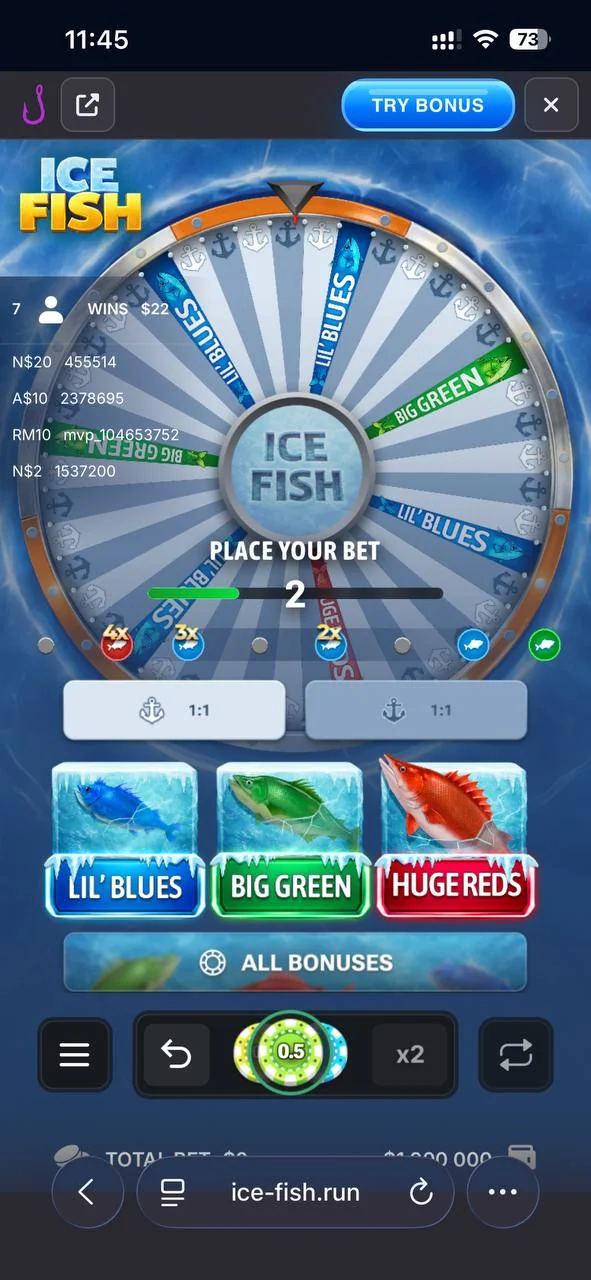
Step 1 — ⋯ menu
Tap the ⋯ button (three dots) in Safari's toolbar.
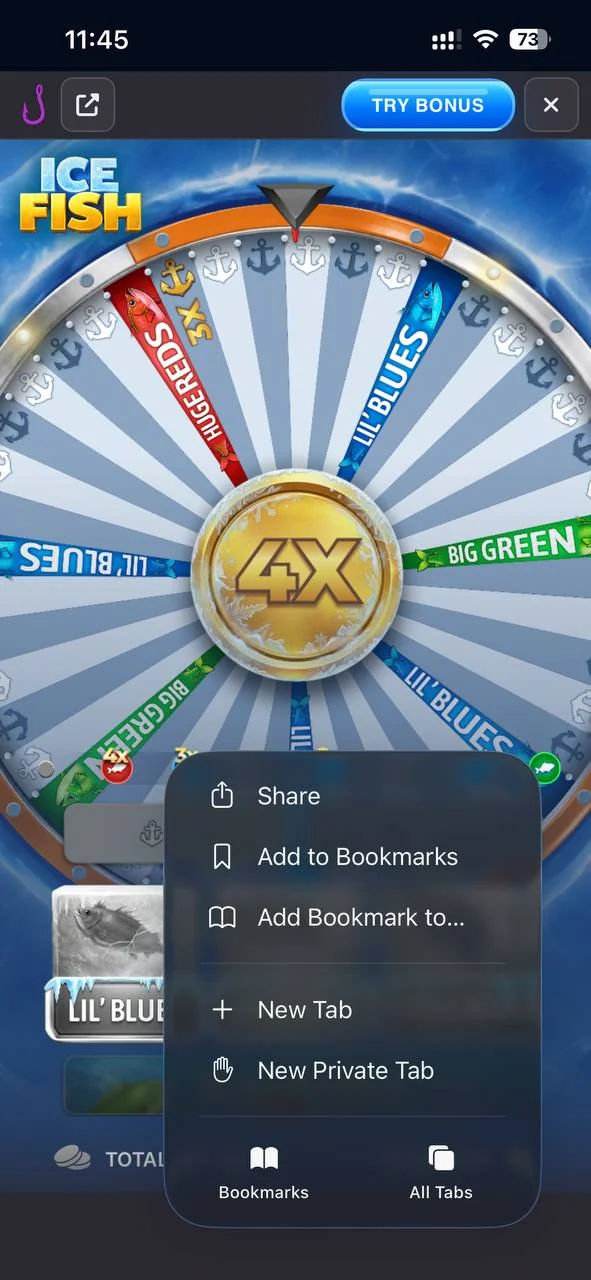
Step 2 — Share
Choose Share — in Safari this is usually the square with an up arrow.
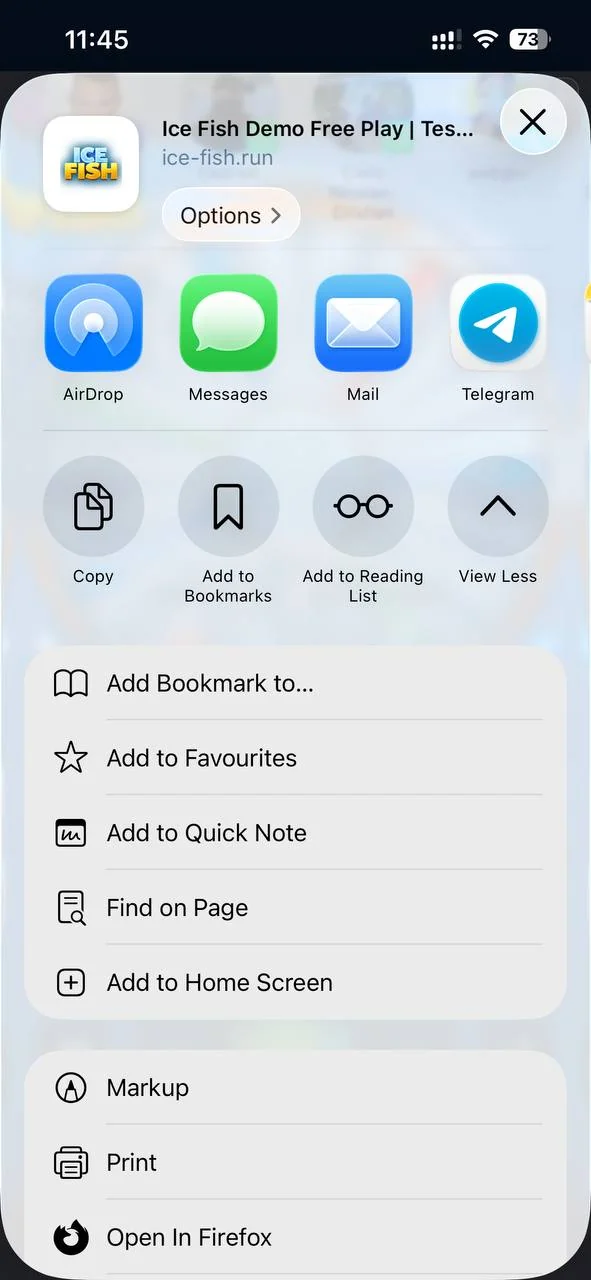
Step 3 — Add to Home Screen
Scroll the list of actions and choose Add to Home Screen. If it is not listed, open Edit Actions at the bottom and turn it on. In the next sheet, if iOS offers Open as Web App, turn it on, then tap Add.
Complete the 3-step tour — then copy the Safari link below
You're ready — open the demo in Safari
Paste the link in Safari's address bar, then repeat the 3 steps above on the demo page.
Open Safari and paste in the address bar